
Running sync, monitoring and cache
The linking engine runs in two modes, records what it does, and caches the result. This page covers all three.
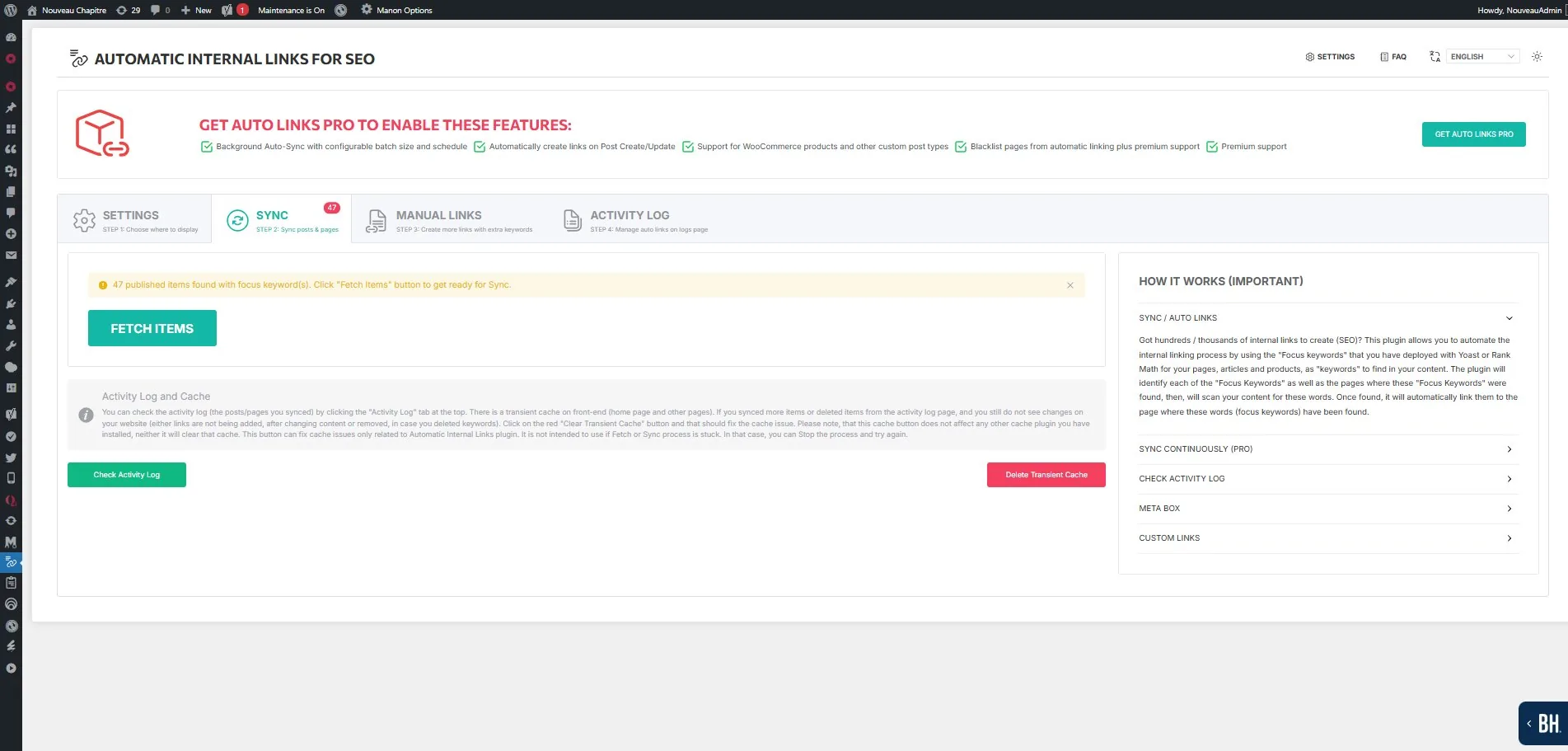
SYNC, the manual mode
Available in both editions. You trigger it from the plugin admin.
- Click FETCH ITEMS to scan your site for content that has focus keywords.
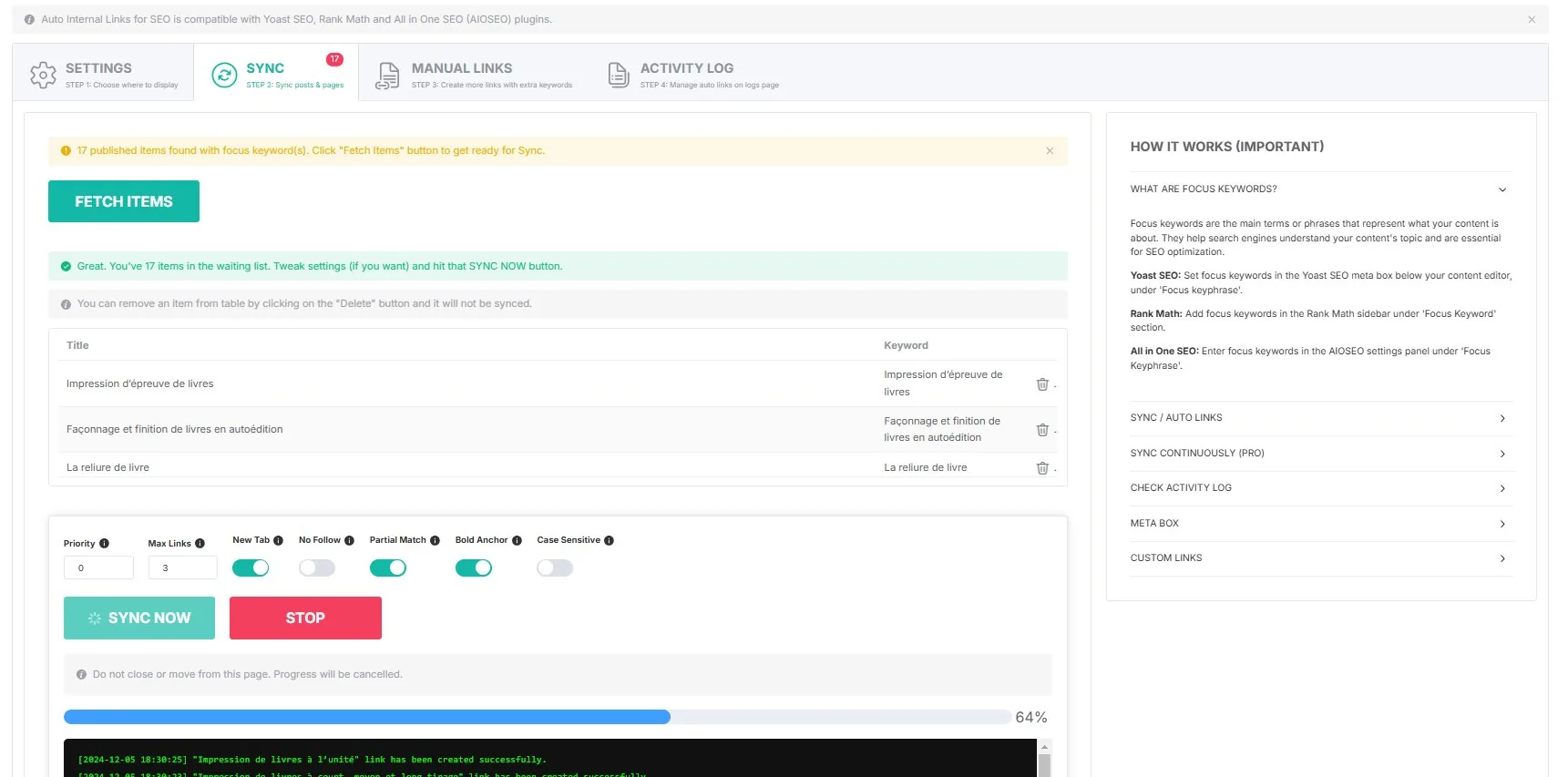
- Review the list. You can delete items you do not want to sync.
- Configure the link settings: priority, max links, partial match, bold anchor, case sensitivity. See matching rules.
- Click SYNC NOW.
The real-time log shows every rule as it is created, with timestamp and destination.
AUTO LINKS, the continuous mode
Pro only. When AUTO LINKS is enabled, the plugin detects new and updated content and creates the rules without manual intervention, on a schedule.
| Setting | Options | Default |
|---|---|---|
| Batch size | 10, 25, 50 or 100 items | 25 |
| Frequency | 15 min, 30 min, hourly, 2 h, 6 h, daily | 15 minutes |
A separate toggle disables the real-time trigger on save_post while keeping the scheduled sync active. That gives you control over when new content enters the linking system.
The badge in the admin menu shows how many items are pending.
The background engine
Worth understanding if you run a large site:
- Cron fires at the configured frequency.
- A transient lock,
ails_auto_sync_lockwith a 5-minute TTL, prevents overlapping runs. - The plugin fetches one batch of posts starting from the stored offset.
- For each post it prepares the link data: post ID, title, focus keyword, URL, default attributes.
- If the post is not already in the log table, a new entry is inserted.
- The offset moves on for the next batch.
- When no posts remain, the offset resets and a sync timestamp is recorded.
After each batch, cached badge counts and sync totals are updated arithmetically rather than by clearing the whole cache. On a large site, that difference is the point.
The last five synced items are stored in ails_last_synced_items for the dashboard.
The activity log
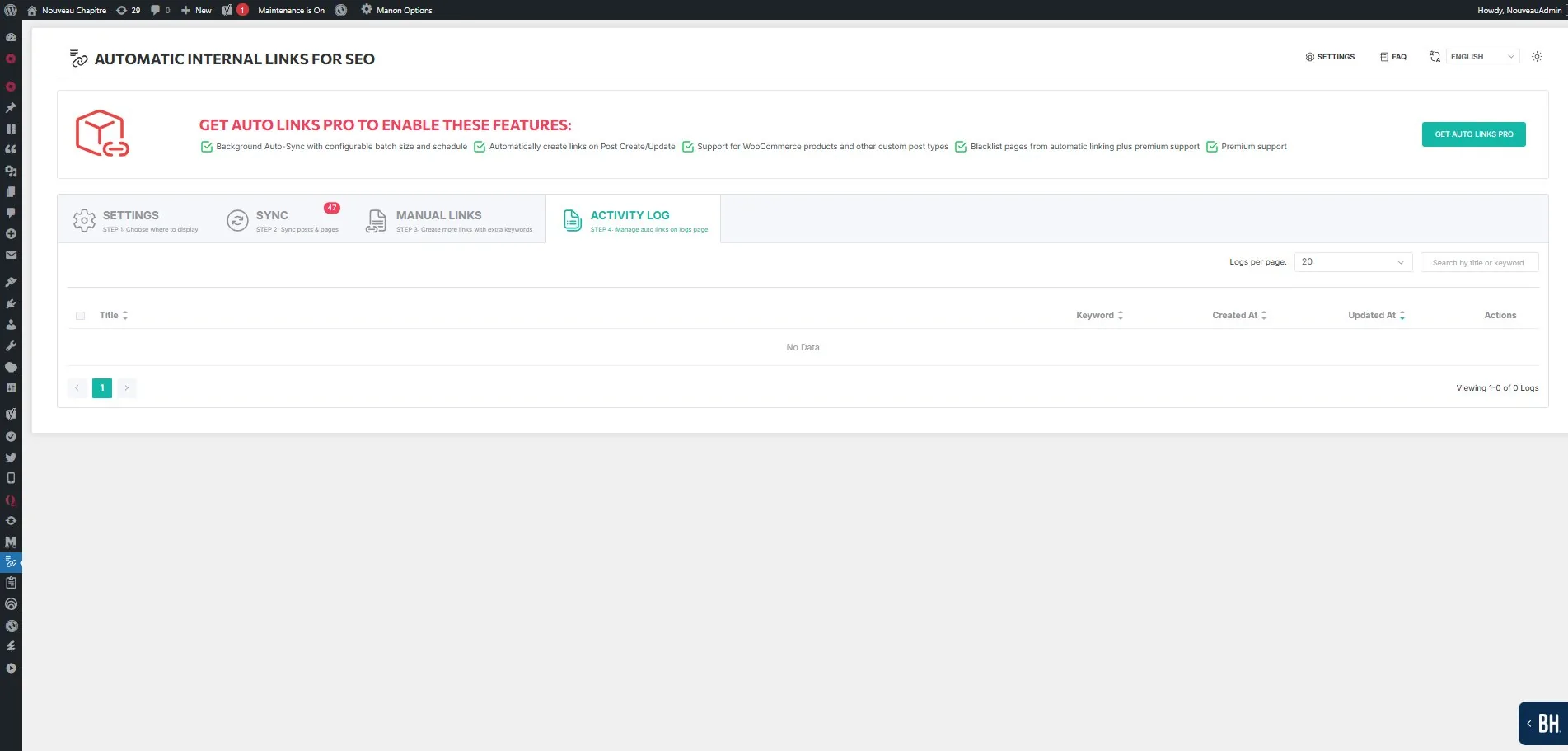
Each entry shows the page title, the keyword used as anchor text, the creation date, the last update date, and the available actions.
Search by title or keyword, and paginate with the logs-per-page setting.
Deleting an entry removes the corresponding rule, so the link stops being injected at the next render. You can delete in bulk with the checkboxes.
What the log proves, and what it does not
The log records the rules that were synchronised. It does not tell you how many links a given page ends up showing: exclusions, existing links, self-link protection and the per-page limit all reduce rules to rendered links. To confirm what a page renders, look at the page.
Cache and performance
The plugin caches link query results as WordPress transients. The first render of a page triggers a database query to find matching keywords; the result is stored as ailsitem{post_id} for subsequent renders.
Expiration: 14 days by default, adjustable through the expiration setting. After that, the next page view triggers a fresh query.
When to clear it
Use Delete Transient Cache on the Sync tab when you need a change to take effect immediately. That applies after you:
- modify the activity log or manual links;
- change excluded keywords, tags or URLs;
- update focus keywords in your SEO plugin.
The button only clears transients created by this plugin. It does not touch WP Super Cache, W3 Total Cache, LiteSpeed or any other cache plugin on your site.
Performance
The query runs once per page per cache period, and the transient system serves subsequent views. SYNC and AUTO LINKS are designed to handle 1,000+ items without server strain, including on shared hosting.
Read next
- How it works — the render-time mechanism
- Matching rules — what gets matched and how it looks
- Controlling what gets linked — the four levels of exclusion
- Manual links — links you define yourself