
Quick Start
This page is the full setup path, from an empty WordPress install to internal links rendering on your site. It takes about ten minutes of attention, plus however long your first sync runs.
The sequence matters. Step two consumes what step one produces, so installing the linking plugin first gives it nothing to work with. Before you begin, confirm your stack against requirements and compatibility.
1. Prepare the SEO plugin layer
Install and activate exactly one supported SEO plugin: Yoast SEO, Rank Math, All in One SEO, or SEOPress.
Both plugins read and write the focus keyword field owned by that SEO plugin. Without one of the four installed, Auto Focus Keyword has nowhere to write and Automatic Internal Links has nothing to read.
Running two SEO plugins at once is the most common cause of confusing results, because each keeps its own keyword storage. Pick one source of truth.
2. Install the plugins
From the WordPress admin
- Go to Plugins → Add New.
- Search for Auto Focus Keyword for SEO.
- Click Install Now, then Activate.
- Repeat for Automatic Internal Links for SEO.
Manual installation from a ZIP
- Download the ZIP from WordPress.org: Auto Focus Keyword or Automatic Internal Links.
- Go to Plugins → Add New → Upload Plugin.
- Select the ZIP and click Install Now.
- Activate the plugin.
Install order
Install Auto Focus Keyword first and run its sync before you install the linking plugin. Automatic Internal Links builds anchors from focus keywords, so on a site where the keyword field is mostly empty it will find almost nothing to link. Installing in the other order is not harmful, it is simply unproductive until the keyword layer exists.
3. Fill the keyword layer
Open Auto Focus Keyword and select which post types to include. Posts and pages are available in the free version; products and custom post types require Pro.
Click FETCH ITEMS to scan for content with an empty focus keyword field.
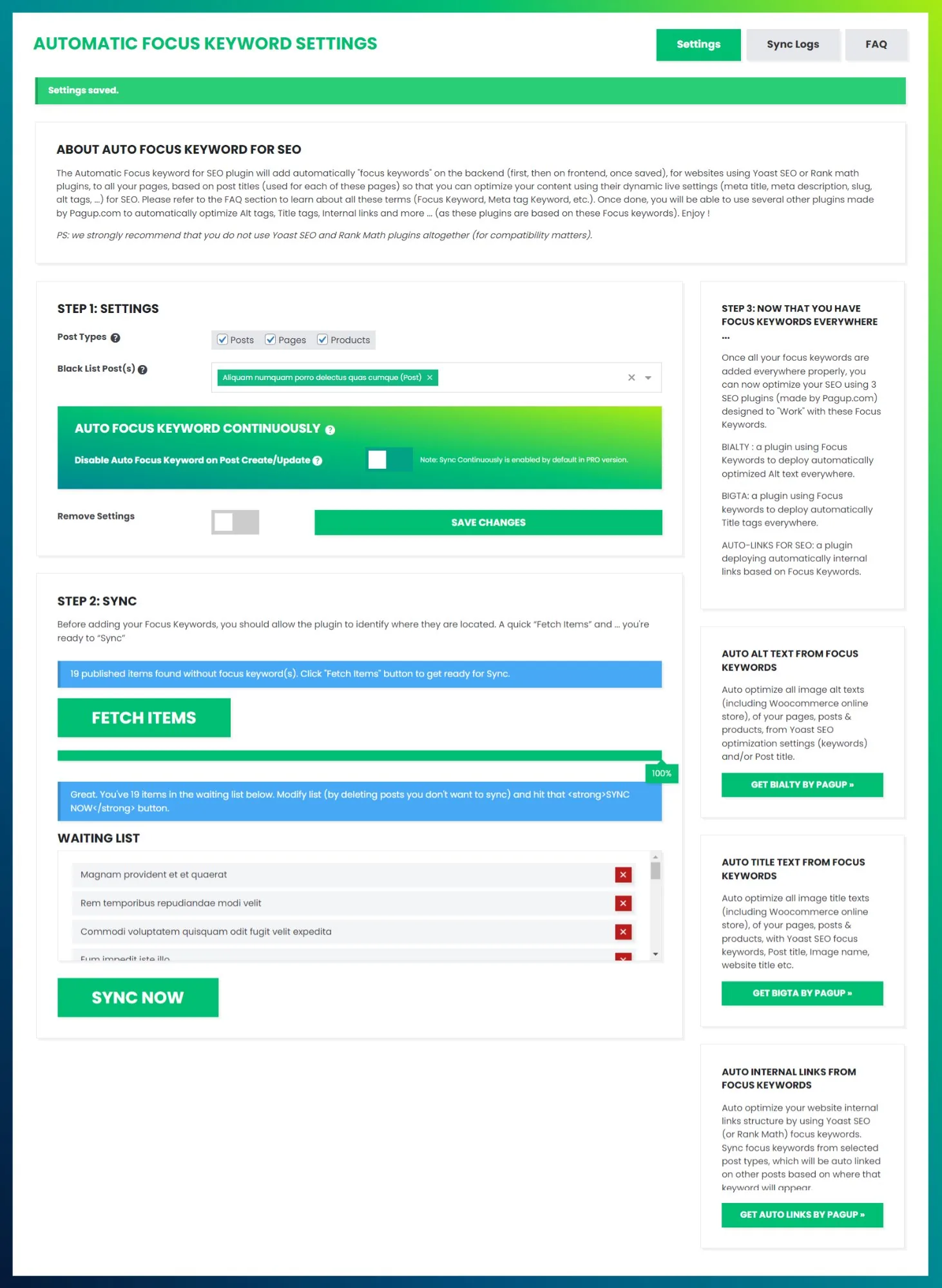
Review the waiting list and remove anything that should not be populated automatically, then click SYNC NOW. The plugin writes each page title into the focus keyword field.
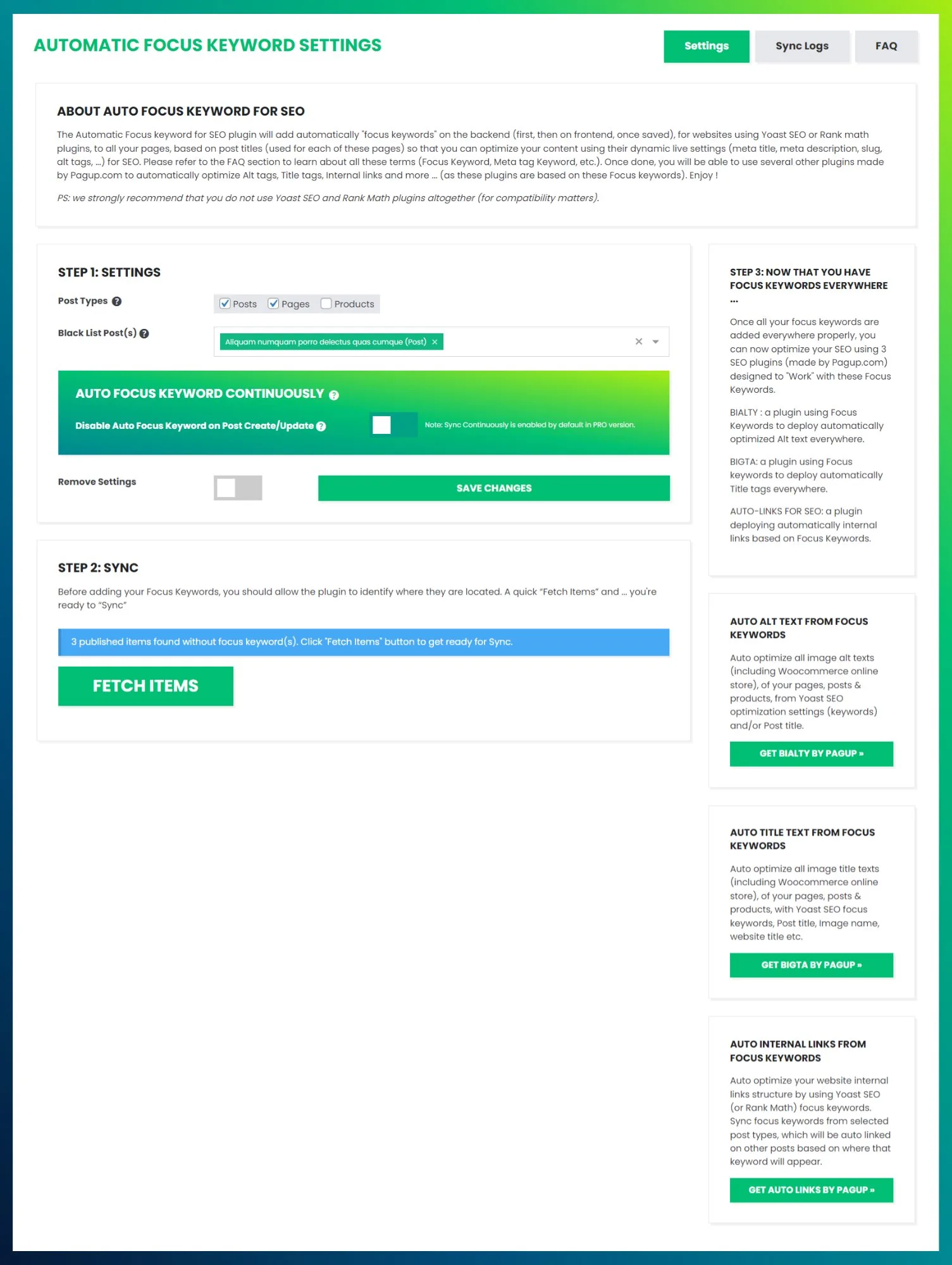
The count returned by FETCH is worth noting before you sync: it is a free measurement of how much of your site had no declared target at all.
Review before you continue
A title is a starting point, not always a good keyword target. Adjust the twenty or so pages you care about most by hand before moving on, because every anchor built in the next step inherits whatever is in that field. See best practices.
4. Configure Automatic Internal Links
Open the Settings tab and set the content scope, the exclusions, the maximum number of links per page and the anchor behaviour.
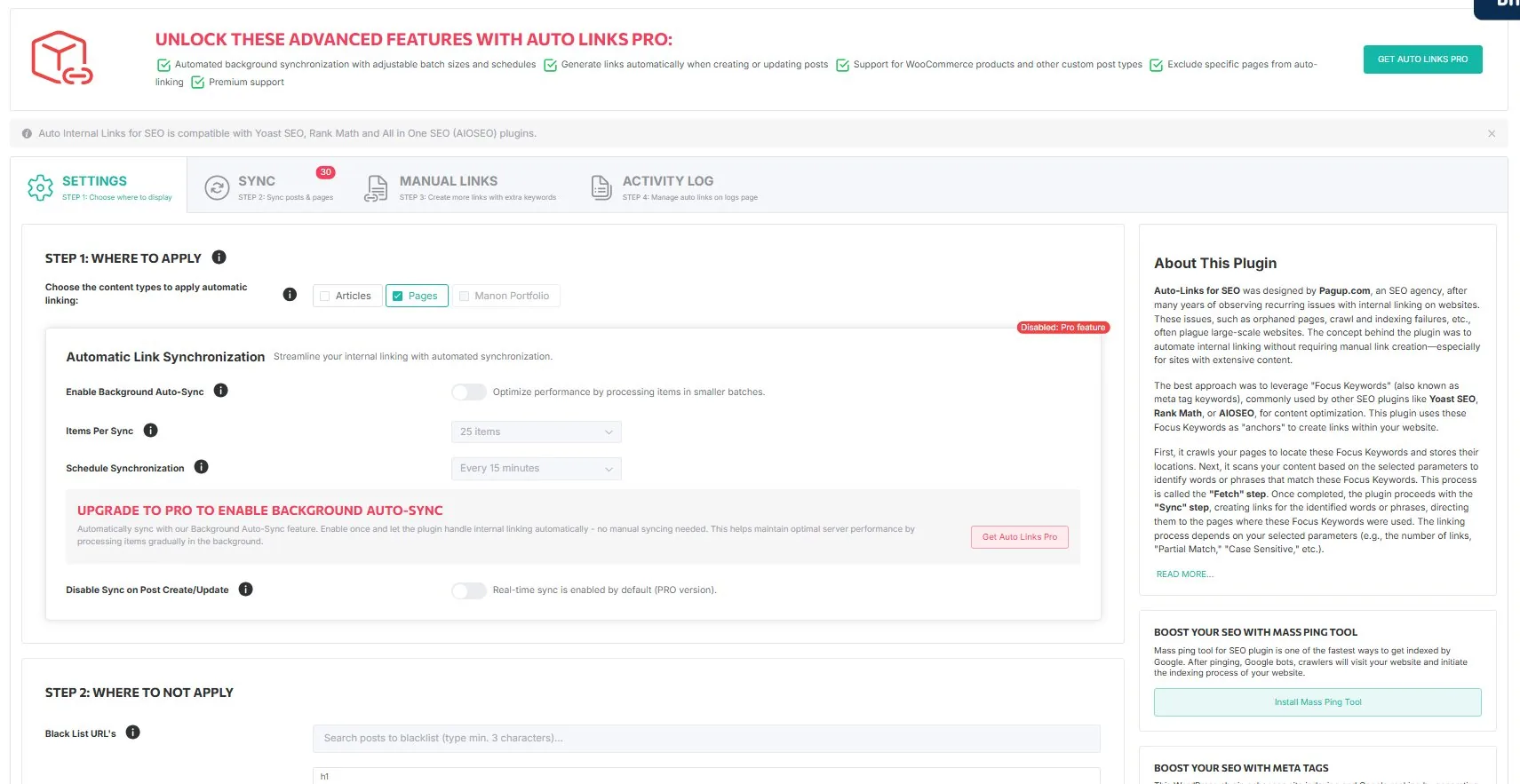
The defaults are conservative and a reasonable first run. The two settings most worth a second look are Max Links and Partial Match, which widens matching inside longer words.
5. Run the first links sync
Go to the SYNC tab, click FETCH ITEMS, then SYNC NOW. The real-time log shows each rule as it is created, with its keyword and destination.
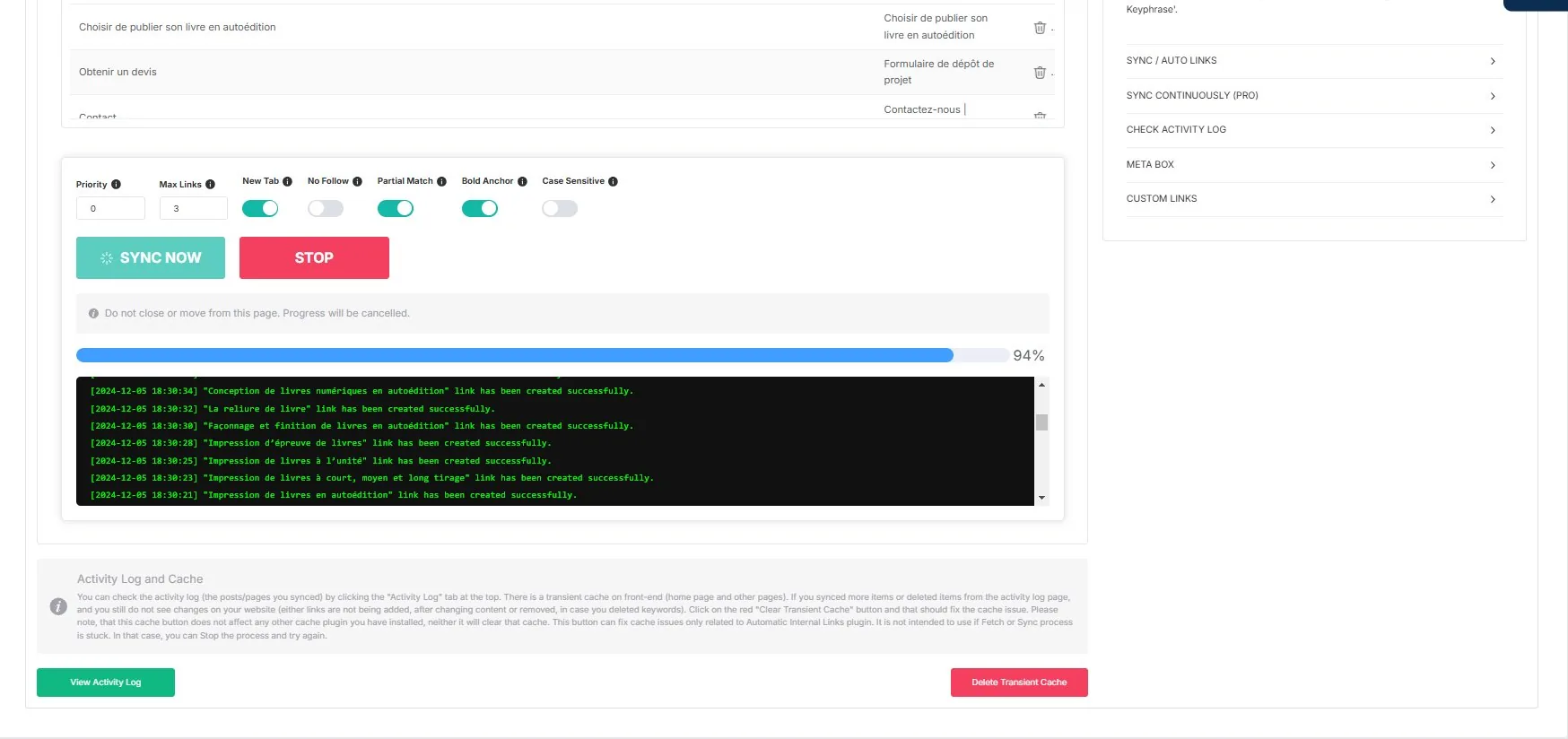
Nothing is written into your posts. The plugin stores rules and applies them when a page renders, so deactivating it removes every generated link instantly.
6. Validate on the frontend
Open real pages on your real theme and check four things: the links render, they point somewhere sensible, your exclusions held, and the density feels right to a reader rather than to a counter.
The activity log tells you which rules exist. It does not tell you how many links a given page ends up showing, because exclusions, existing links, self-link protection and the per-page limit all reduce rules to rendered links. To know what a page renders, look at the page.
If something is missing, troubleshooting covers the usual causes, starting with the cache.
7. Only then consider Pro
Move to the paid tier once you have seen the free version behave on your own content. Pro adds continuous sync, WooCommerce products and custom post types on both plugins. Compare plans.
Read next
- Requirements and compatibility — versions, SEO plugins, known limitations
- The pipeline — what the two plugins do together, and why
- Troubleshooting — when links do not appear
- FAQ — the short answers